
Update 9/14/26: You can now set spend caps directly in the Firebase console! See Introducing Firebase spend caps to learn more.
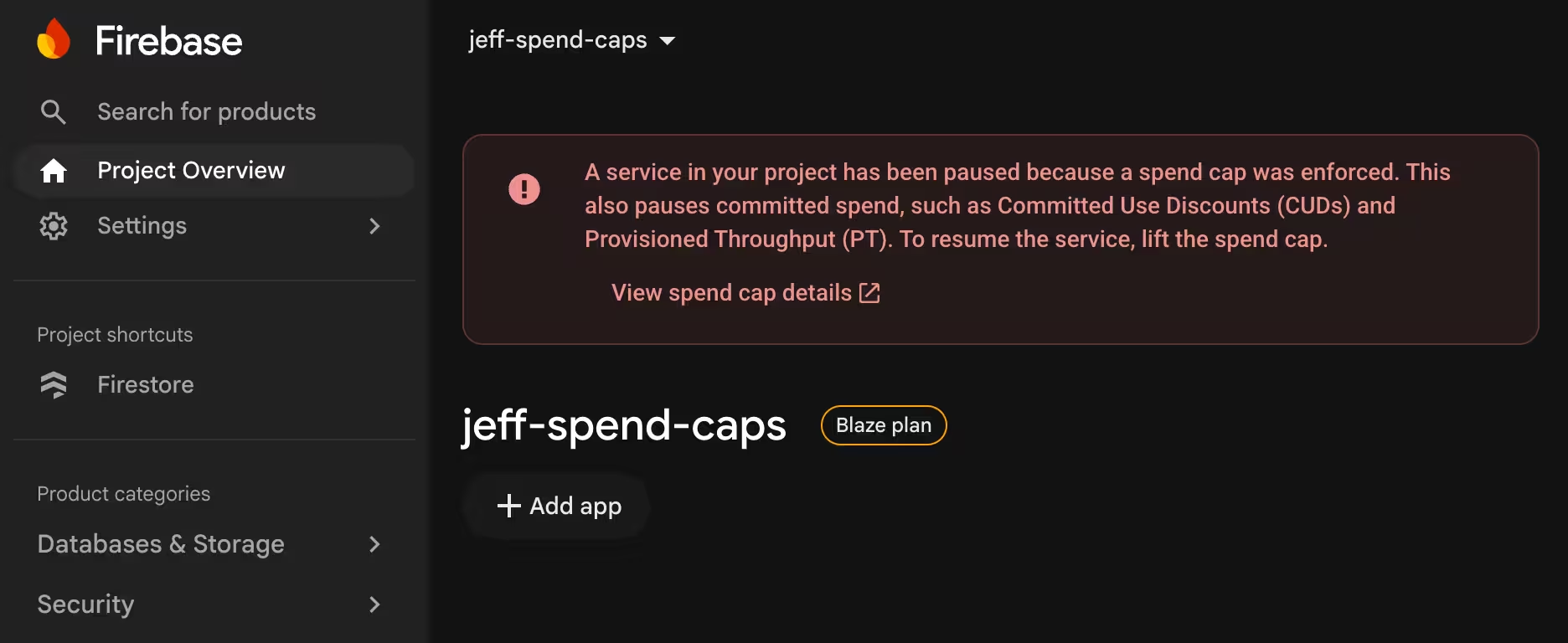
This week, Google Cloud announced the ability to set spend caps on budgets. This is a Big Deal. The new spend caps actually pause supported services when a cap is reached.
Since Firebase projects are Cloud projects, spend caps can apply to Firebase services, too! Specifically, these:
| Firebase product | Cloud product |
|---|---|
| Cloud Functions for Firebase | Cloud Run Functions |
| Firebase AI Logic | Gemini API or Gemini Enterprise Agent Platform (formerly Vertex AI) |
| Firebase App Hosting | Cloud Run (plus other services that don’t have spend caps, like Cloud CDN) |
| Firebase Extensions | Cloud Run Functions |
I set up spend caps on one of my projects and thought I’d share a bit about the experience.
Caps on multiple services
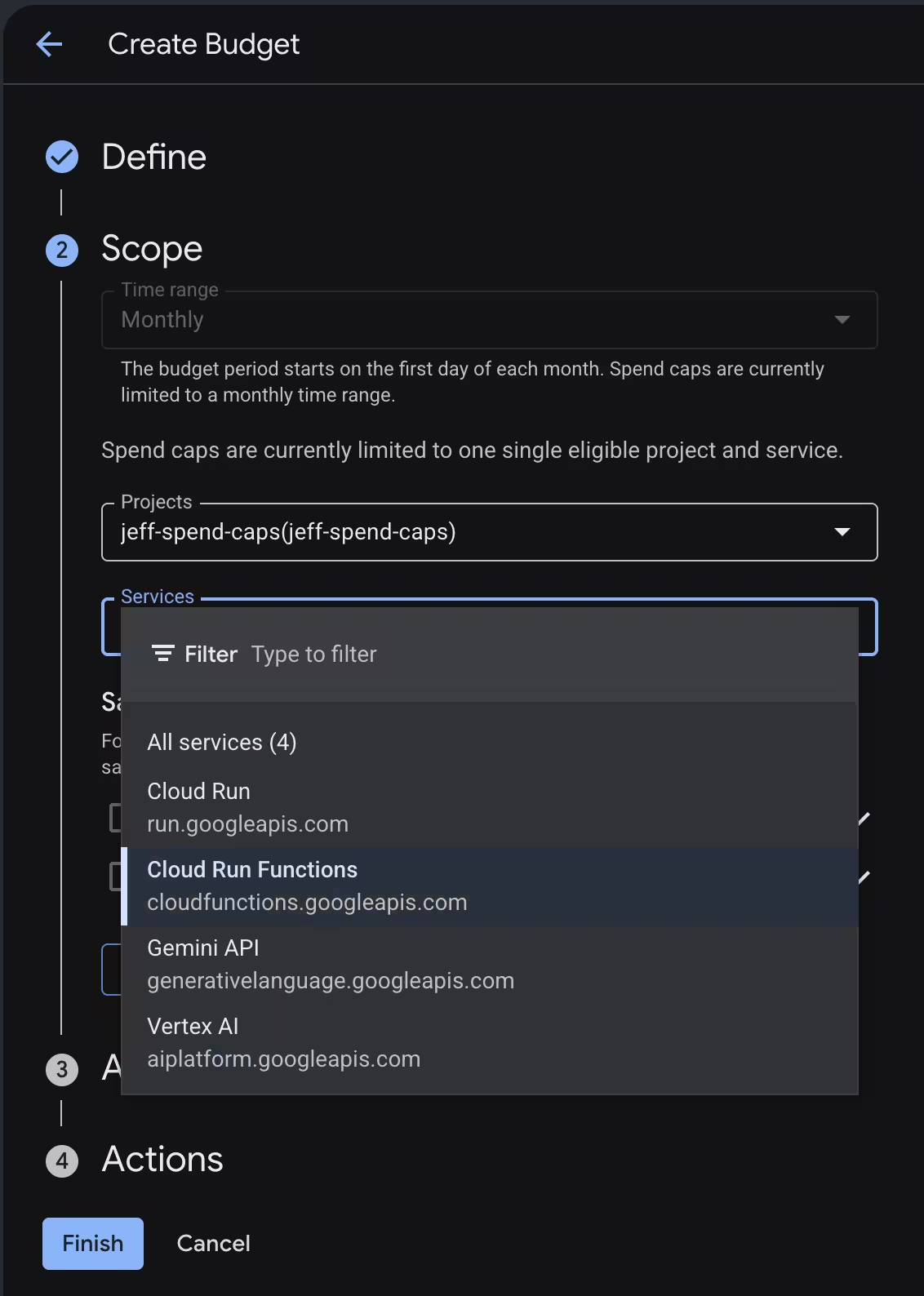
One thing that confused me in the spend cap setup flow was that I was only able to pick a single service (and the docs say “Spend caps are limited to budgets that are scoped to a single Google Cloud project and a single eligible service within the specified project.”).
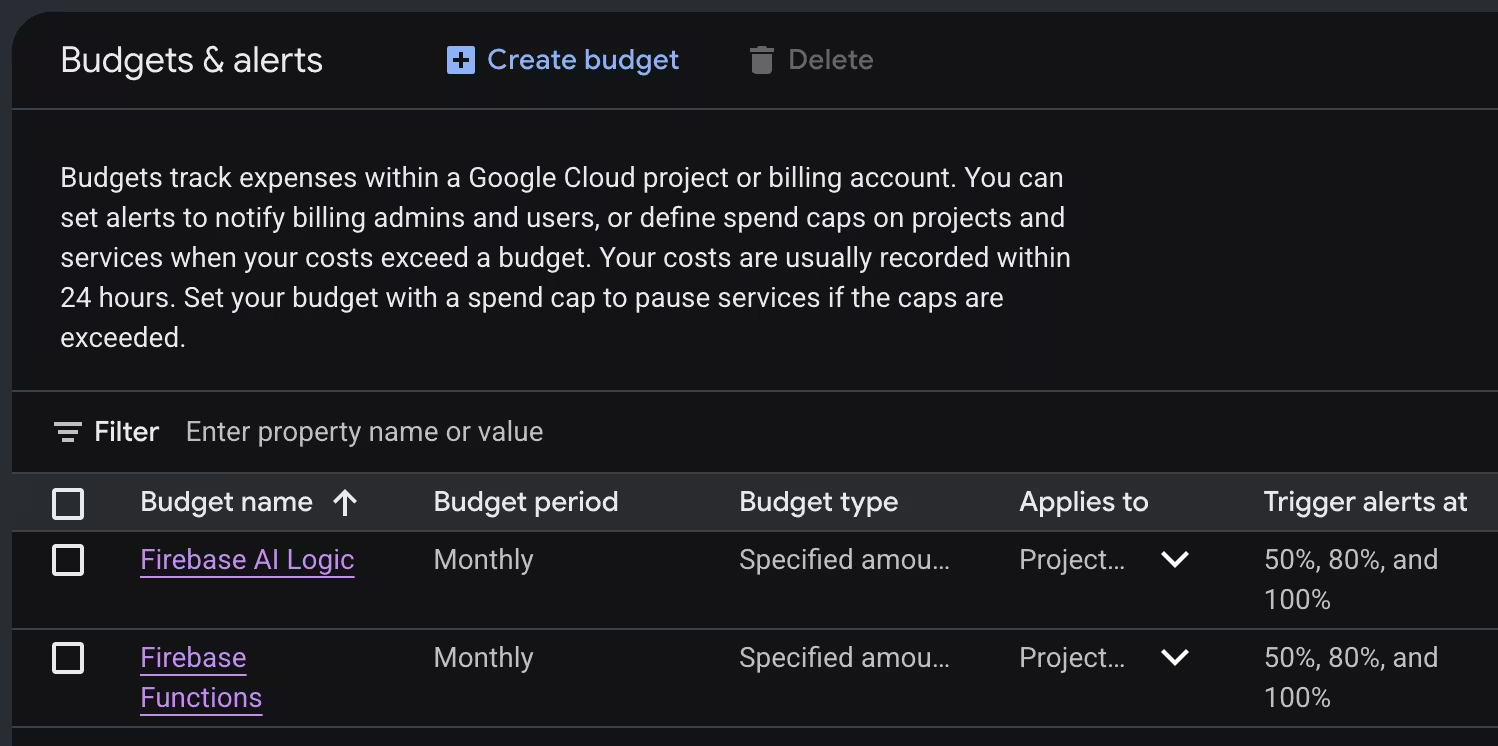
What if I use Functions and AI Logic in a project? Do I need to pick just one? Thankfully, no. Even though a single cap only supports a single service, I could create multiple spend caps, one for each service:
Setting up a spend cap
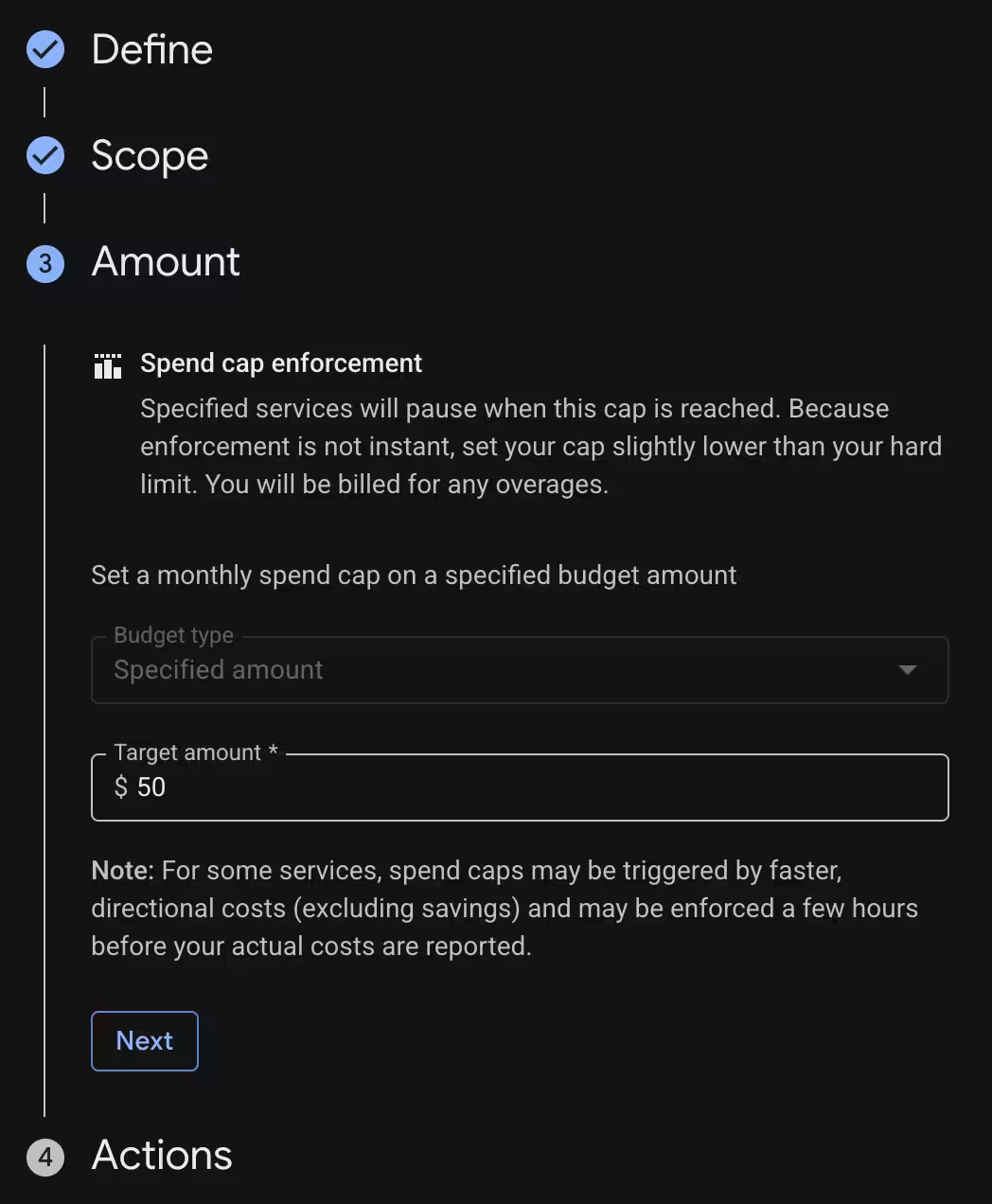
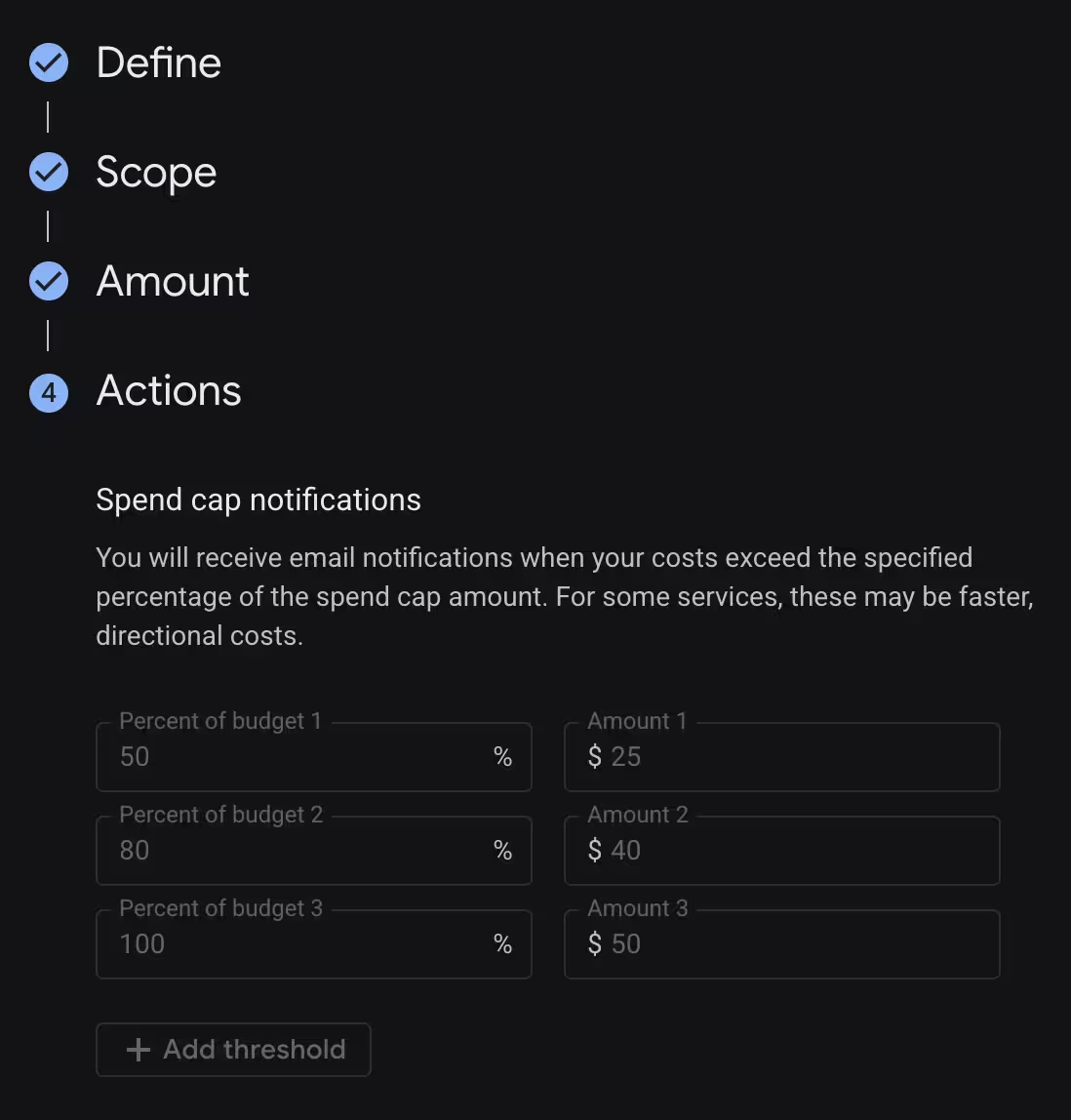
I’ll leave the full setup instructions to the documentation, but if you’re curious, here’s what spend cap setup looked like for me:
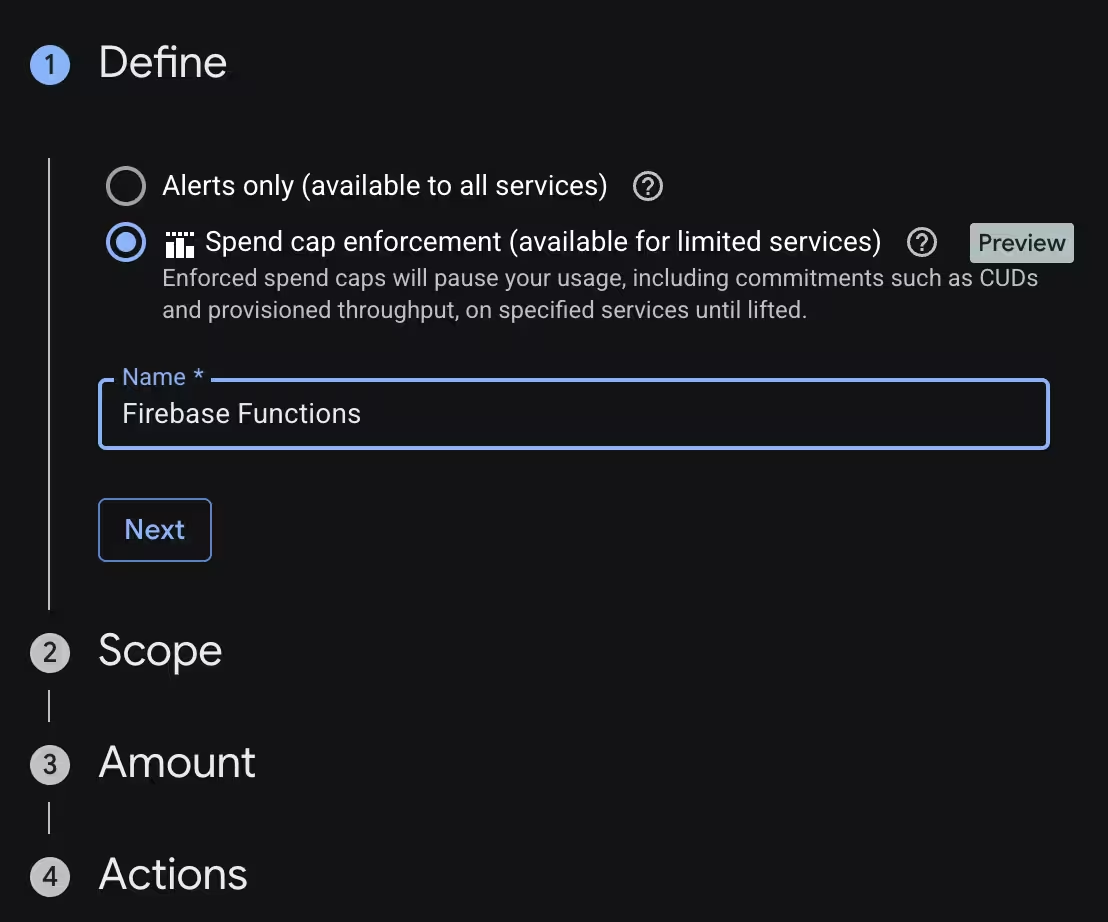
- Create a budget, and choose “Spend cap enforcement”.
- Choose the service that backs the Firebase product you’re using.
- Set an amount.
- View the notification thresholds (trying to change them shows a popover “Spend cap notification settings cannot be edited”).
Set them up on your project
Read through Manage spend cap budgets (and especially Limitations) before making a decision, but even with the current limitations, this is a valuable new tool to prevent surprise bills.
And, just a reminder that Firebase’s Avoid surprise bills guide has other tips to, well, avoid surprise bills.